How to Take Screenshot on Samsung S23 Phone Easily Step by Step Guide
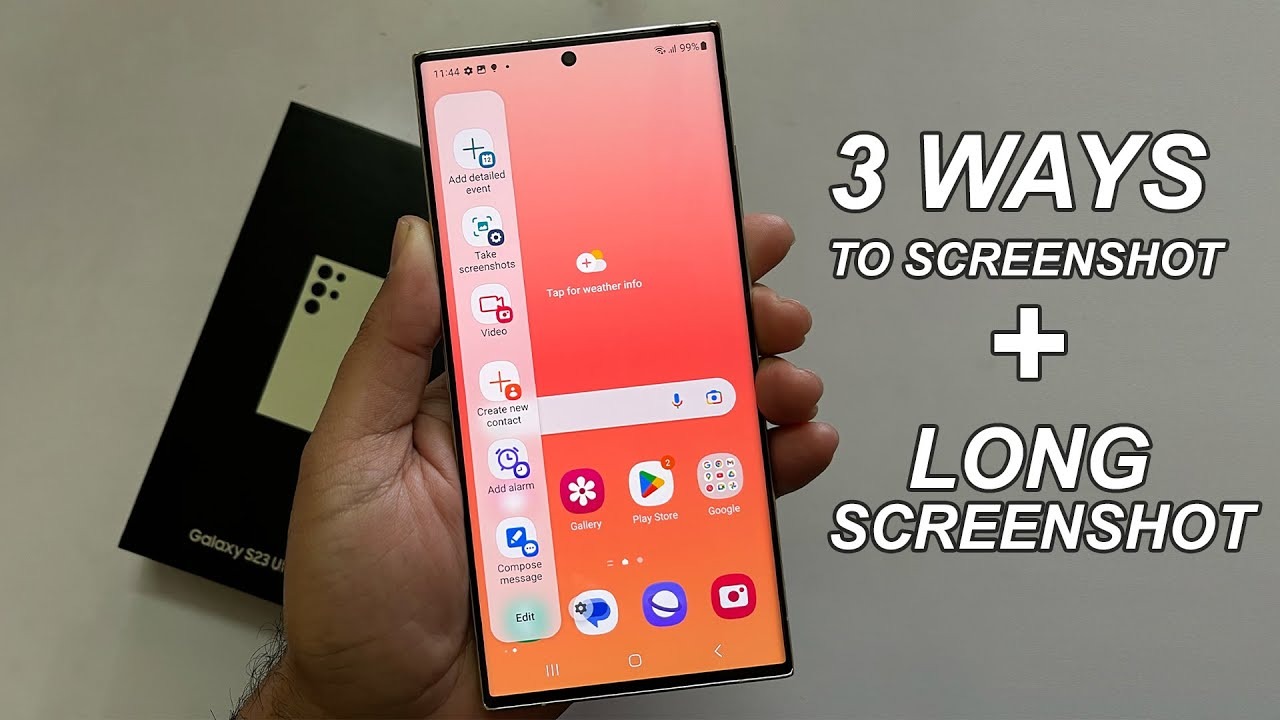
Learning how to take screenshot on samsung s23 is useful for daily tasks. Screenshots help save information share messages and capture moments from apps or websites. Samsung makes this process simple and flexible with multiple options.
Whether you want to capture a quick message or save a full page the Samsung S23 offers easy tools. You do not need extra apps or advanced skills. Everything is built into the phone system.
This guide explains how to take screenshot on samsung s23 in clear and simple steps. It also covers editing saving and managing screenshots easily.
Basic Screenshot Method on Samsung S23
The most common way to take a screenshot on Samsung S23 is by using the hardware buttons. Press the power button and the volume down button at the same time. Hold them briefly and release. You will see a flash or hear a sound that confirms the screenshot is taken. The image will appear at the bottom of the screen for a moment.
This method works in almost every app and screen. It is fast and reliable for everyday use. If the buttons are not working properly you can use other methods that Samsung provides.
Using Palm Swipe to Take Screenshot
Samsung includes a feature called palm swipe. This allows you to take a screenshot by sliding your hand across the screen. To use this feature go to settings then advanced features then motions and gestures. Turn on palm swipe to capture.
Once enabled place the side of your hand on the edge of the screen and swipe across. The phone will capture the screen instantly. This method feels natural once you get used to it. It is helpful when using the phone with one hand.
Taking Long or Scrolling Screenshots
Sometimes you want to capture more than what fits on one screen. Samsung S23 allows scrolling screenshots. After taking a normal screenshot tap the scroll capture option that appears at the bottom. The phone will scroll automatically and capture more content.
You can repeat this until you reach the bottom of the page. This is useful for long messages web pages or articles. The final image is saved as one long screenshot which is easy to view and share.
Using Voice or Assistant Features
You can also use voice commands to take screenshots. Activate your voice assistant and say take a screenshot. This is helpful when your hands are busy or when using the phone on a stand.
The phone will capture the screen and save it automatically. This method is quick and hands free. Voice commands work well when the environment is quiet and clear. You can explore a comprehensive guide on trashyminds com
Editing and Managing Screenshots
After taking a screenshot you can edit it instantly. The preview allows you to crop draw or add text. You can highlight important areas or blur private information. This is useful before sharing images.
Screenshots are saved in the gallery under a separate folder. You can organize or delete them anytime. Samsung also allows sharing screenshots directly from the preview window. This saves time and effort.
Common Issues and Fixes
If screenshot does not work check if the buttons are functioning properly. Restarting the phone often fixes small glitches. Make sure palm swipe is enabled if you are using that method.
Low storage space can also prevent screenshots from saving. Clear space if needed. Keeping the system updated helps avoid bugs and improves performance.
Final Thoughts
Learning how to take screenshot on samsung s23 makes daily phone use easier. The phone offers multiple methods so you can choose what feels most comfortable.
From button presses to gestures and voice commands Samsung gives flexibility and convenience. With these features capturing and sharing content becomes simple and fast.
FAQ
How do I take screenshot on samsung s23?
Press the power and volume down buttons together or use palm swipe.
Can I take long screenshots on samsung s23?
Yes, use the scroll capture option after taking a screenshot.
Where are screenshots saved on samsung s23?
They are saved in the gallery under the screenshots folder.
Can I edit screenshots on samsung s23?
Yes, you can crop draw and add text after capturing.
Why is screenshot not working on my samsung s23?
Check settings restart the phone or ensure enough storage space.